How To Use OpenClaw To Build And Run Your Own AI Assistant?
Artificial intelligence tools are rapidly evolving, and many people are now exploring ways to run their own AI assistants instead of relying entirely on cloud services. Platforms like OpenClaw are designed to make this possible by allowing users to build autonomous AI agents that can perform real tasks directly from chat applications or local systems. Learning How To Use OpenClaw helps individuals and businesses automate everyday digital activities while maintaining control over their data and workflows.
Unlike traditional chatbots that only respond to messages, modern AI agent platforms can execute commands, manage files, schedule tasks, and interact with various online services.
Understanding the Purpose of the Platform
OpenClaw is an open-source AI agent framework created to help users run intelligent assistants on their own machines. Instead of functioning only as a chatbot interface, it acts as a system capable of performing actions such as managing emails, organizing calendars, browsing the web, or executing scripts.
The project is designed to work across multiple messaging platforms, allowing users to communicate with their assistant through familiar channels like messaging apps or collaboration tools.
Preparing Your System for Installation

Before setting up OpenClaw, it is important to ensure your computer environment is ready to support the platform.
Make sure your operating system is compatible first. OpenClaw is designed to run on modern systems such as Windows, macOS, and Linux. Most installations also require tools like Node.js or command-line utilities, depending on the chosen installation method.
Next, decide which AI model you want the assistant to use. The platform can connect to multiple language models, including cloud-based or locally hosted options. This flexibility allows users to tailor their assistant according to performance, privacy, or cost preferences.
Installing the OpenClaw Environment
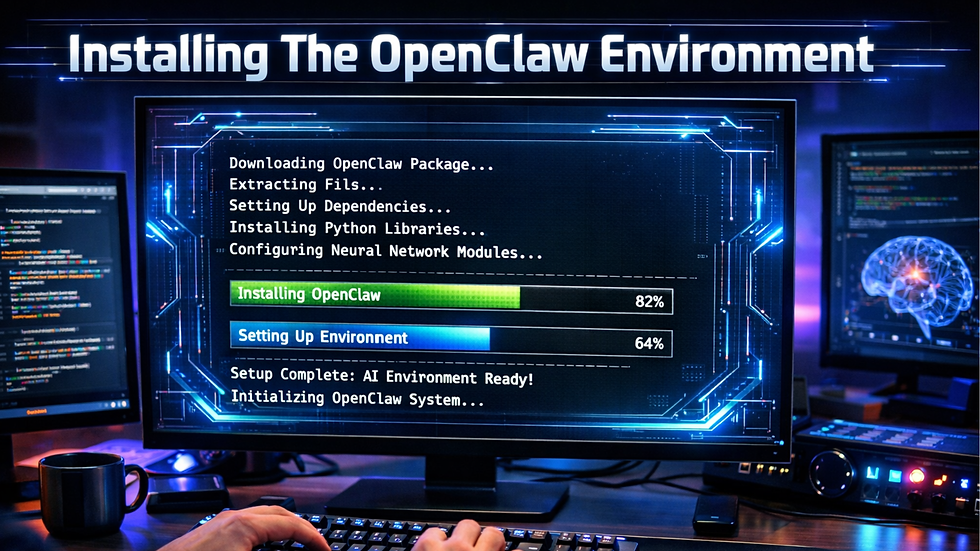
The installation process is relatively straightforward and usually begins with downloading the framework from its official source, such as OpenClaw.ai.
In many cases, the setup can be performed through a command-line script that automatically installs the required components. After installation, users can initialize the assistant by running the onboarding command that guides them through the configuration process.
During onboarding, the system will ask for details such as preferred AI model, authentication keys, and communication channels.
Connecting the AI Assistant to Communication Channels
One of the most powerful features of OpenClaw is its ability to operate within common messaging platforms. Instead of opening a separate application, users can interact with their assistant directly through chat tools they already use.
For example, the assistant can be linked to messaging services like Discord, Slack, or Telegram. When connected, the AI becomes available in conversations and can respond to commands or perform tasks on request.
Customizing Skills and Automation
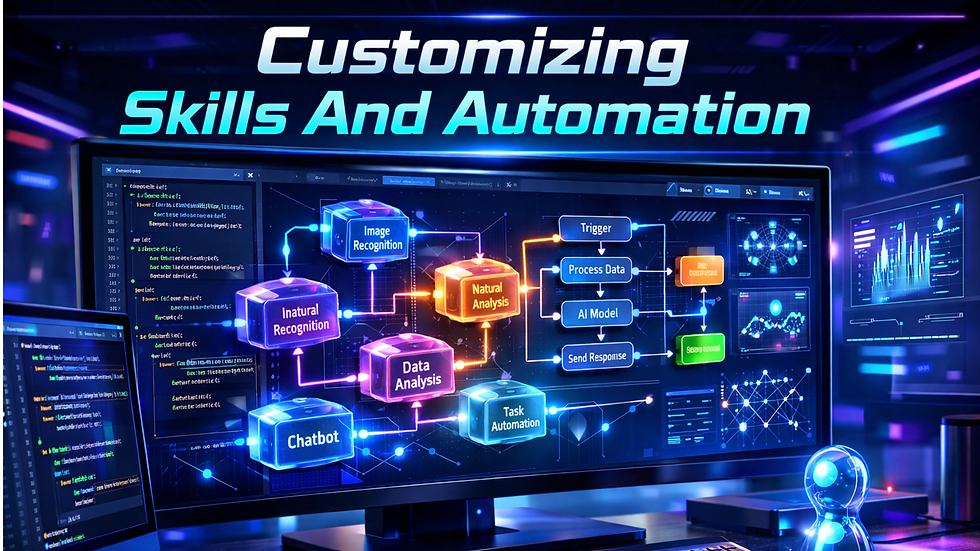
After installation, users can extend their assistant by adding skills or plugins. Skills allow the AI to perform specialized actions such as browsing the web, interacting with APIs, or automating development workflows.
Developers can also build custom skills using programming tools. This makes it possible to design agents tailored to specific workflows like marketing automation, coding assistance, or data analysis, while supporting Self Learning AI capabilities for smarter automation over time.
Because the system supports multiple integrations, it can interact with various platforms and services simultaneously. Over time, these automations can significantly reduce repetitive tasks and increase productivity.
Exploring Practical Use Cases
Once the assistant is running, users can begin exploring different ways to integrate it into their daily routines.
Some people use the platform to manage communication tasks such as organizing emails or scheduling meetings. Others use it to automate development processes, run scripts, or monitor systems.
The platform is also useful for experimentation with AI agents, allowing developers and researchers to test how autonomous assistants interact with digital environments.
Tips for Using the Platform Effectively
To get the best results from OpenClaw, a few practical strategies can help.
First, start with simple tasks and gradually add more complex automation. This helps you understand how the assistant interacts with your system and ensures the configuration works correctly.
Second, regularly review permissions and integrations. Since AI agents can access files and services, proper configuration helps maintain security and privacy.
Finally, explore community documentation and developer resources. Many users share helpful guides, scripts, and integrations that can significantly improve the assistant’s capabilities.
You can also watch: Globussoft: Transforming Businesses with AI-Powered Solutions & Next-Gen Technology.
Conclusion
AI assistants are becoming increasingly capable, and open-source platforms are making them accessible to a wider audience. By learning How To Use OpenClaw, individuals can build a powerful personal AI agent that performs real tasks instead of simply generating text.
With flexible installation options, customizable skills, and the ability to integrate with popular messaging platforms, OpenClaw provides a practical way to experiment with AI automation while maintaining full control over your data and workflows. As the technology continues to evolve, tools like this will play a key role in shaping the future of intelligent digital assistants.
FAQs:
1. What is OpenClaw?
OpenClaw is an open-source AI agent platform that lets users run a personal AI assistant capable of performing real tasks on their system.
2. Can OpenClaw run on different operating systems?
Yes, it supports major platforms such as Windows, macOS, and Linux.
3. What can an OpenClaw AI assistant do?
It can automate tasks like scheduling, file management, web browsing, and interacting with various apps or services.
Comments